> ## Documentation Index
> Fetch the complete documentation index at: https://docs-staging-feat-member-mgmt-docs.mintlify.site/llms.txt
> Use this file to discover all available pages before exploring further.

# ユースケース：Formsを使用してプログレッシブプロファイルフォームを構成する

> Forms for Actionsを使用してプログレッシブプロファイルフォームを構成する方法を説明します。

<Card title="始める前に">
  1. 以下のスコープを有効にして、[マシンツーマシンアプリケーション](https://auth0.com/docs/get-started/auth0-overview/create-applications/machine-to-machine-apps)を作成します。

  * `read:users`
  * `update:users`
  * `create:users`
  * `read:users_app_metadata`
  * `update:users_app_metadata`
  * `create:users_app_metadata`

  2. マシンツーマシンアプリケーションの資格情報を使って[Vault接続](/docs/ja-jp/customize/forms/vault)を追加します。
</Card>

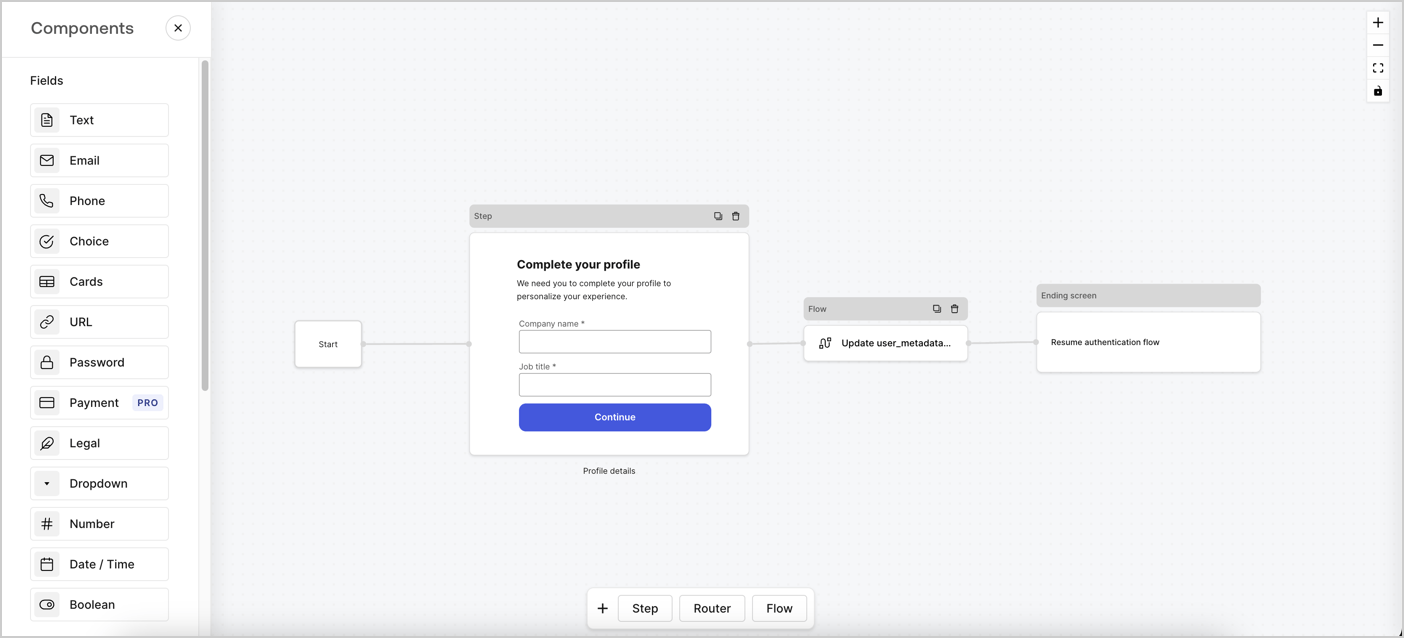
Forms for Actionsを使用すると、プログレッシブプロファイリングフローを作成して、会社名や役職などの不足している情報を収集し、それらを`user_metadata`属性として保管するようユーザーに求めるタイミングを決定できます。
<Frame>
  <img src="https://mintcdn.com/docs-staging-feat-member-mgmt-docs/xJwtZFu6q05ch8mB/docs/images/ja-jp/cdy7uua7fh8z/xUx9YmnHvnAqL19JvNtNP/60dae88f893d4ebe8e3523421e960596/Progressive-profle-overview.png?fit=max&auto=format&n=xJwtZFu6q05ch8mB&q=85&s=8b3147a1502901e345259edf89789b7c" alt="Dashboard > Actions > Forms > Form" data-og-width="1404" width="1404" data-og-height="638" height="638" data-path="docs/images/ja-jp/cdy7uua7fh8z/xUx9YmnHvnAqL19JvNtNP/60dae88f893d4ebe8e3523421e960596/Progressive-profle-overview.png" data-optimize="true" data-opv="3" srcset="https://mintcdn.com/docs-staging-feat-member-mgmt-docs/xJwtZFu6q05ch8mB/docs/images/ja-jp/cdy7uua7fh8z/xUx9YmnHvnAqL19JvNtNP/60dae88f893d4ebe8e3523421e960596/Progressive-profle-overview.png?w=280&fit=max&auto=format&n=xJwtZFu6q05ch8mB&q=85&s=2b2654a69dad38386d85de967eca7e05 280w, https://mintcdn.com/docs-staging-feat-member-mgmt-docs/xJwtZFu6q05ch8mB/docs/images/ja-jp/cdy7uua7fh8z/xUx9YmnHvnAqL19JvNtNP/60dae88f893d4ebe8e3523421e960596/Progressive-profle-overview.png?w=560&fit=max&auto=format&n=xJwtZFu6q05ch8mB&q=85&s=f3622bb4fa5cdf63e0b4dee537ac0db7 560w, https://mintcdn.com/docs-staging-feat-member-mgmt-docs/xJwtZFu6q05ch8mB/docs/images/ja-jp/cdy7uua7fh8z/xUx9YmnHvnAqL19JvNtNP/60dae88f893d4ebe8e3523421e960596/Progressive-profle-overview.png?w=840&fit=max&auto=format&n=xJwtZFu6q05ch8mB&q=85&s=3563ab5fb99d039ab77842cfb2b9107f 840w, https://mintcdn.com/docs-staging-feat-member-mgmt-docs/xJwtZFu6q05ch8mB/docs/images/ja-jp/cdy7uua7fh8z/xUx9YmnHvnAqL19JvNtNP/60dae88f893d4ebe8e3523421e960596/Progressive-profle-overview.png?w=1100&fit=max&auto=format&n=xJwtZFu6q05ch8mB&q=85&s=c5bc8f3e6999fdd6aed3633839db35ff 1100w, https://mintcdn.com/docs-staging-feat-member-mgmt-docs/xJwtZFu6q05ch8mB/docs/images/ja-jp/cdy7uua7fh8z/xUx9YmnHvnAqL19JvNtNP/60dae88f893d4ebe8e3523421e960596/Progressive-profle-overview.png?w=1650&fit=max&auto=format&n=xJwtZFu6q05ch8mB&q=85&s=1ee8a7446705a47dbe59efbe12f90e19 1650w, https://mintcdn.com/docs-staging-feat-member-mgmt-docs/xJwtZFu6q05ch8mB/docs/images/ja-jp/cdy7uua7fh8z/xUx9YmnHvnAqL19JvNtNP/60dae88f893d4ebe8e3523421e960596/Progressive-profle-overview.png?w=2500&fit=max&auto=format&n=xJwtZFu6q05ch8mB&q=85&s=76fe603a157a10005573df67a9c2c991 2500w" />
</Frame>

以下のセクションでは、ノードとフローを使用してプログレッシブプロファイルフォームを作成する方法と、フォームを[ログイン後のアクション](/docs/ja-jp/customize/actions/explore-triggers/signup-and-login-triggers/login-trigger)に追加する手順について説明します。

## フォームをゼロから作成する

情報を収集するためのフォームを作成するには、次の手順に従ってください。

1. **［Auth0 Dashboard］>［Actions（アクション）］>［Forms（フォーム）］** の順に選択して、フォームエディターを開きます。
2. **［Create Form（フォームを作成）］** > **［Start from scratch（初めから作成する）］** の順に選択します。

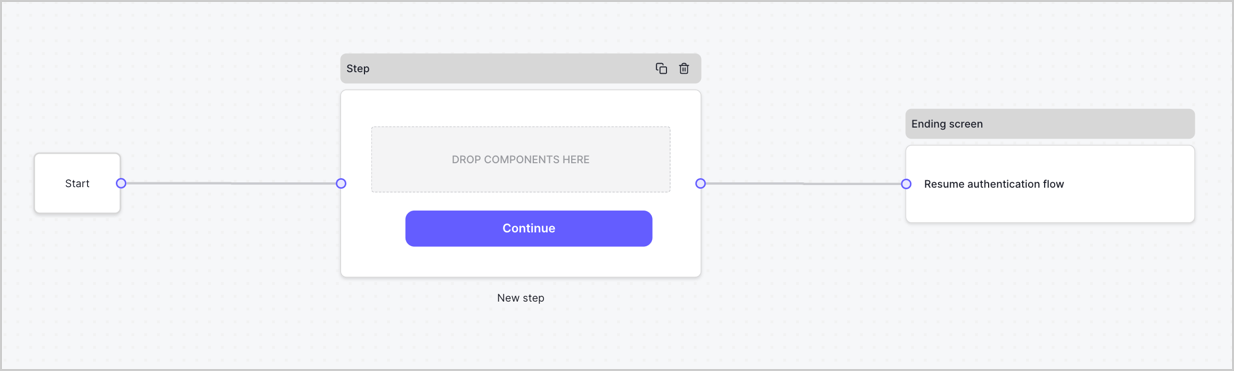
特に設定を変更しない限り、新しいフォームには開始ノード、ステップノード、および終了スクリーンノードが含まれます。
<Frame>
  <img src="https://mintcdn.com/docs-staging-feat-member-mgmt-docs/93XtCBGv1QQxUSnC/docs/images/ja-jp/cdy7uua7fh8z/2TZ9jSjgEcARFpULI6hz4R/a4319a1bd482f2ee5cc23100fdb2f42c/New-form-Forms-for-action-use-case.png?fit=max&auto=format&n=93XtCBGv1QQxUSnC&q=85&s=067e612b6668e97ad2b05fc3b300d211" alt="Dashboard > Forms > Use Cases > Form" data-og-width="1234" width="1234" data-og-height="371" height="371" data-path="docs/images/ja-jp/cdy7uua7fh8z/2TZ9jSjgEcARFpULI6hz4R/a4319a1bd482f2ee5cc23100fdb2f42c/New-form-Forms-for-action-use-case.png" data-optimize="true" data-opv="3" srcset="https://mintcdn.com/docs-staging-feat-member-mgmt-docs/93XtCBGv1QQxUSnC/docs/images/ja-jp/cdy7uua7fh8z/2TZ9jSjgEcARFpULI6hz4R/a4319a1bd482f2ee5cc23100fdb2f42c/New-form-Forms-for-action-use-case.png?w=280&fit=max&auto=format&n=93XtCBGv1QQxUSnC&q=85&s=4bf20e740cbcda0881a9d911a07a4480 280w, https://mintcdn.com/docs-staging-feat-member-mgmt-docs/93XtCBGv1QQxUSnC/docs/images/ja-jp/cdy7uua7fh8z/2TZ9jSjgEcARFpULI6hz4R/a4319a1bd482f2ee5cc23100fdb2f42c/New-form-Forms-for-action-use-case.png?w=560&fit=max&auto=format&n=93XtCBGv1QQxUSnC&q=85&s=2dbfb70968b68e7b55064fe14cefec00 560w, https://mintcdn.com/docs-staging-feat-member-mgmt-docs/93XtCBGv1QQxUSnC/docs/images/ja-jp/cdy7uua7fh8z/2TZ9jSjgEcARFpULI6hz4R/a4319a1bd482f2ee5cc23100fdb2f42c/New-form-Forms-for-action-use-case.png?w=840&fit=max&auto=format&n=93XtCBGv1QQxUSnC&q=85&s=976c0b54b2dce9fdda2b75f29ada5db5 840w, https://mintcdn.com/docs-staging-feat-member-mgmt-docs/93XtCBGv1QQxUSnC/docs/images/ja-jp/cdy7uua7fh8z/2TZ9jSjgEcARFpULI6hz4R/a4319a1bd482f2ee5cc23100fdb2f42c/New-form-Forms-for-action-use-case.png?w=1100&fit=max&auto=format&n=93XtCBGv1QQxUSnC&q=85&s=209d0b84d3936e7e7cc806d1d8edbacb 1100w, https://mintcdn.com/docs-staging-feat-member-mgmt-docs/93XtCBGv1QQxUSnC/docs/images/ja-jp/cdy7uua7fh8z/2TZ9jSjgEcARFpULI6hz4R/a4319a1bd482f2ee5cc23100fdb2f42c/New-form-Forms-for-action-use-case.png?w=1650&fit=max&auto=format&n=93XtCBGv1QQxUSnC&q=85&s=a33c60c1a32cbc2f83eb8ac45fc4b2aa 1650w, https://mintcdn.com/docs-staging-feat-member-mgmt-docs/93XtCBGv1QQxUSnC/docs/images/ja-jp/cdy7uua7fh8z/2TZ9jSjgEcARFpULI6hz4R/a4319a1bd482f2ee5cc23100fdb2f42c/New-form-Forms-for-action-use-case.png?w=2500&fit=max&auto=format&n=93XtCBGv1QQxUSnC&q=85&s=e240fd850d9ae24016326b61d32e9d4d 2500w" />
</Frame>

### ステップノードを構成する

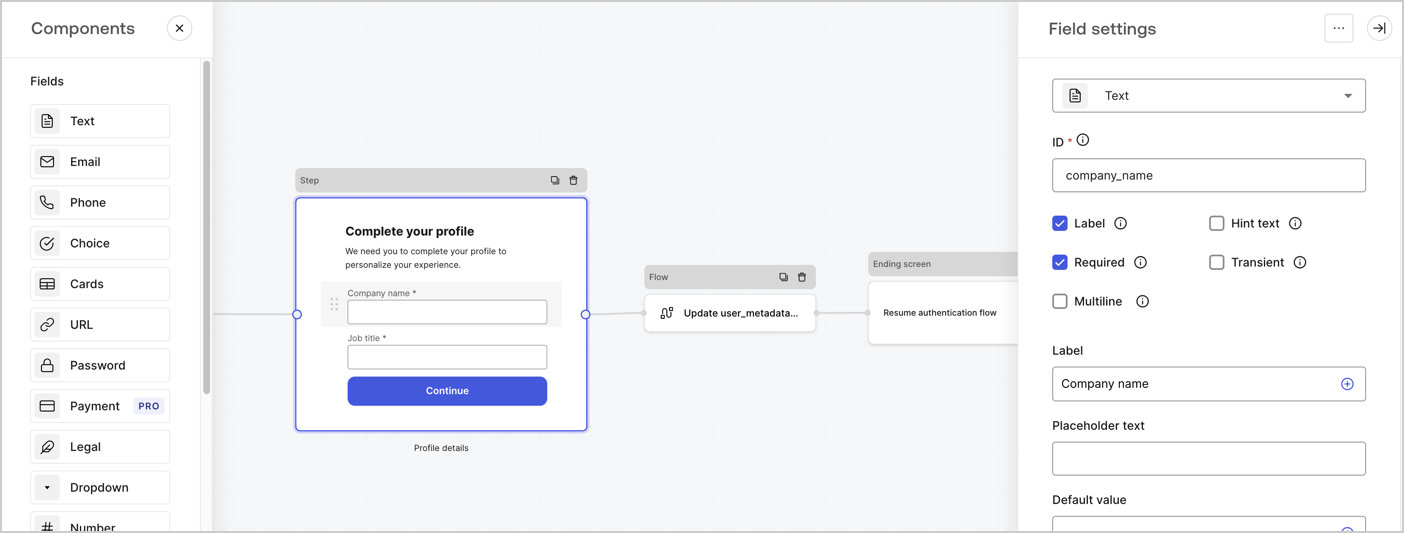
ステップノードはユーザーに表示されるグラフィカルインターフェイスです。次の手順に従って、ステップノードに[フィールド](/docs/ja-jp/customize/forms/nodes-and-components)を追加し、ユーザーの会社名と役職の値を収集します。

1. **［Components menu（コンポーネントメニュー）］** から **［Rich text（リッチテキスト）］** フィールドを **Step（ステップ）** ノードにドラッグします。

   * **Rich text（リッチテキスト）** ：カスタムメッセージを入力します。

     * **例** ：`Complete your profile! We need you to complete your profile to personalize your experience.`（プロファイルの完成！エクスペリエンスをパーソナライズするには、プロファイルを完成させる必要があります。）
   * **［Save（保存）］** を選択します。
2. **Text（テキスト）** フィールドを **Step（ステップ）** ノードにドラッグします。

   * **Id** ：`company_name`を入力します。
   * **Label（ラベル）** ：チェックボックスを有効にします。
   * **Label（ラベル）** ：`Company name`（会社名）を入力します。
   * **Required（必須）** ：チェックボックスを有効にします。
   * **［Save（保存）］** を選択します。
3. **Text（テキスト）** フィールドを **Step（ステップ）** ノードにドラッグします。

   1. **Id** ：`job_title`を入力します。
   2. **Label（ラベル）** ：`Job title`（役職）を入力します。
   3. **Label（ラベル）** ：チェックボックスを有効にします。
   4. **Required（必須）** ：チェックボックスを有効にします。
   5. **［Save（保存）］** を選択します。
4. **［Publish（公開）］** を選択して保存します。

<Frame>
  <img src="https://mintcdn.com/docs-staging-feat-member-mgmt-docs/RbhwUk9Ltm-vFunL/docs/images/ja-jp/cdy7uua7fh8z/6H1lRzwKyYioQyQJ9MtIoM/aa248e92fc028a68a5b92ff361a11644/progressive-profile-step.png?fit=max&auto=format&n=RbhwUk9Ltm-vFunL&q=85&s=2050b8b648e5100bc4b1d4e6f5bdc437" alt="Dashboard > Actions > Forms > Form > Step node" data-og-width="1404" width="1404" data-og-height="533" height="533" data-path="docs/images/ja-jp/cdy7uua7fh8z/6H1lRzwKyYioQyQJ9MtIoM/aa248e92fc028a68a5b92ff361a11644/progressive-profile-step.png" data-optimize="true" data-opv="3" srcset="https://mintcdn.com/docs-staging-feat-member-mgmt-docs/RbhwUk9Ltm-vFunL/docs/images/ja-jp/cdy7uua7fh8z/6H1lRzwKyYioQyQJ9MtIoM/aa248e92fc028a68a5b92ff361a11644/progressive-profile-step.png?w=280&fit=max&auto=format&n=RbhwUk9Ltm-vFunL&q=85&s=c9f2627f51f329d1577b7579a2824b4a 280w, https://mintcdn.com/docs-staging-feat-member-mgmt-docs/RbhwUk9Ltm-vFunL/docs/images/ja-jp/cdy7uua7fh8z/6H1lRzwKyYioQyQJ9MtIoM/aa248e92fc028a68a5b92ff361a11644/progressive-profile-step.png?w=560&fit=max&auto=format&n=RbhwUk9Ltm-vFunL&q=85&s=50cb1b91f021c23b97b0c0dd83d0c404 560w, https://mintcdn.com/docs-staging-feat-member-mgmt-docs/RbhwUk9Ltm-vFunL/docs/images/ja-jp/cdy7uua7fh8z/6H1lRzwKyYioQyQJ9MtIoM/aa248e92fc028a68a5b92ff361a11644/progressive-profile-step.png?w=840&fit=max&auto=format&n=RbhwUk9Ltm-vFunL&q=85&s=2b8df9d223e7fd789457a6a2348e3fc1 840w, https://mintcdn.com/docs-staging-feat-member-mgmt-docs/RbhwUk9Ltm-vFunL/docs/images/ja-jp/cdy7uua7fh8z/6H1lRzwKyYioQyQJ9MtIoM/aa248e92fc028a68a5b92ff361a11644/progressive-profile-step.png?w=1100&fit=max&auto=format&n=RbhwUk9Ltm-vFunL&q=85&s=76946b9de81b5423a0ba2c2a6ceb2b9c 1100w, https://mintcdn.com/docs-staging-feat-member-mgmt-docs/RbhwUk9Ltm-vFunL/docs/images/ja-jp/cdy7uua7fh8z/6H1lRzwKyYioQyQJ9MtIoM/aa248e92fc028a68a5b92ff361a11644/progressive-profile-step.png?w=1650&fit=max&auto=format&n=RbhwUk9Ltm-vFunL&q=85&s=a62f7386f50f5d21f2c6529e2b2678b0 1650w, https://mintcdn.com/docs-staging-feat-member-mgmt-docs/RbhwUk9Ltm-vFunL/docs/images/ja-jp/cdy7uua7fh8z/6H1lRzwKyYioQyQJ9MtIoM/aa248e92fc028a68a5b92ff361a11644/progressive-profile-step.png?w=2500&fit=max&auto=format&n=RbhwUk9Ltm-vFunL&q=85&s=fa91fbe70c927ae3ba2810510d929460 2500w" />
</Frame>

### フローノードを構成する

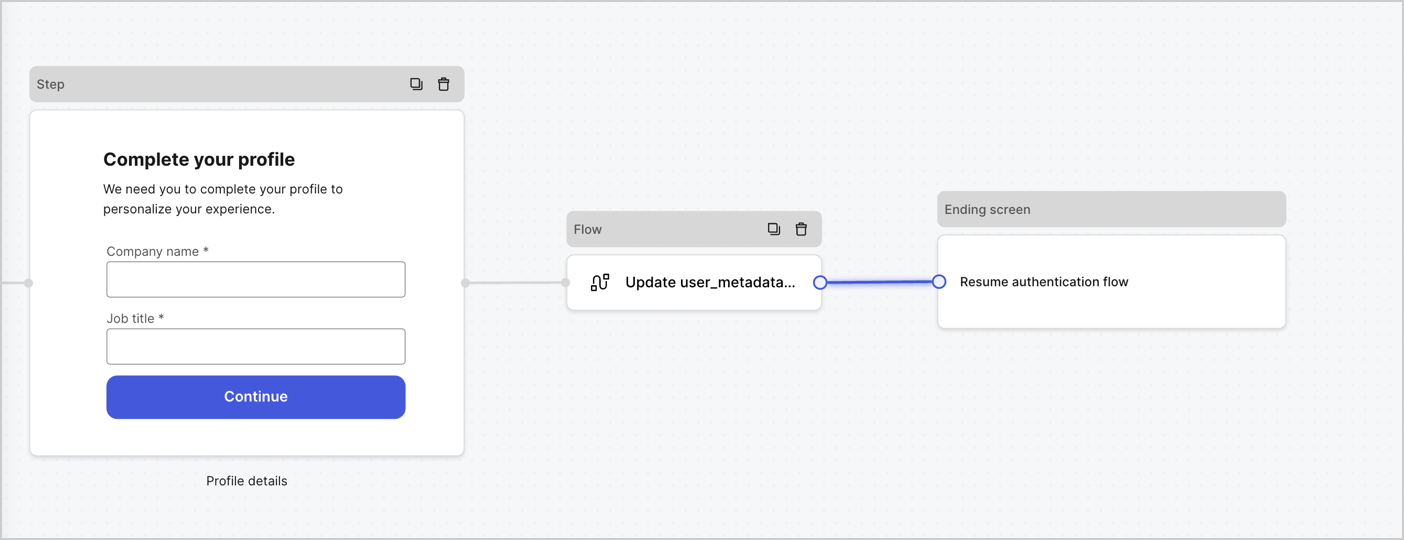
以下の手順に従って、 **Step（ステップ）** ノードの後に​​ **Flow（フロー）** ノードを追加し、`user_metadata`を更新して認証フローを再開します。

1. フォームエディターの下にある **［Flow（フロー）］** を選択します。
2. **Step（ステップ）** ノードと **Ending Screen（終了画面）** ノードの間にある既存のリンクを削除します。
3. 新たに **［Flow（フロー）］** \&gt **［Click to add a flow（クリックしてフローを追加する）］** > **［Create a new flow（新しいフローを作成する）］** を選択します。

   * **［Name（名前）］** フィールドに`Update user_metadata`（user\_metadata更新）と入力します。
   * **［Create（作成）］** を選択します。
   * **［Save（保存）］** を選択します。
4. 下の画像のように **Flow（フロー）** ノードを **Step（ステップ）** ノードと **Ending Screen（終了画面）** ノードにリンクします。
5. **［Publish（公開）］** を選択して保存します。

<Frame>
  <img src="https://mintcdn.com/docs-staging-feat-member-mgmt-docs/AtKYg3QsuD1-N0L9/docs/images/ja-jp/cdy7uua7fh8z/5C91DaWn4LGtJT9BF87ssu/095171d0c452a287c44bfde12fd6d13f/link-nodes.png?fit=max&auto=format&n=AtKYg3QsuD1-N0L9&q=85&s=53533b7bf1673d182106eafd32b2422e" alt="Dashboard > Actions > Forms > Form" data-og-width="1404" width="1404" data-og-height="540" height="540" data-path="docs/images/ja-jp/cdy7uua7fh8z/5C91DaWn4LGtJT9BF87ssu/095171d0c452a287c44bfde12fd6d13f/link-nodes.png" data-optimize="true" data-opv="3" srcset="https://mintcdn.com/docs-staging-feat-member-mgmt-docs/AtKYg3QsuD1-N0L9/docs/images/ja-jp/cdy7uua7fh8z/5C91DaWn4LGtJT9BF87ssu/095171d0c452a287c44bfde12fd6d13f/link-nodes.png?w=280&fit=max&auto=format&n=AtKYg3QsuD1-N0L9&q=85&s=88c3d05691a0396e5f5bb719d7fdb53c 280w, https://mintcdn.com/docs-staging-feat-member-mgmt-docs/AtKYg3QsuD1-N0L9/docs/images/ja-jp/cdy7uua7fh8z/5C91DaWn4LGtJT9BF87ssu/095171d0c452a287c44bfde12fd6d13f/link-nodes.png?w=560&fit=max&auto=format&n=AtKYg3QsuD1-N0L9&q=85&s=7ce07e20b1312a8e760dc11062d5b2e8 560w, https://mintcdn.com/docs-staging-feat-member-mgmt-docs/AtKYg3QsuD1-N0L9/docs/images/ja-jp/cdy7uua7fh8z/5C91DaWn4LGtJT9BF87ssu/095171d0c452a287c44bfde12fd6d13f/link-nodes.png?w=840&fit=max&auto=format&n=AtKYg3QsuD1-N0L9&q=85&s=177f6ac65918b86c4e95e8d94e619da7 840w, https://mintcdn.com/docs-staging-feat-member-mgmt-docs/AtKYg3QsuD1-N0L9/docs/images/ja-jp/cdy7uua7fh8z/5C91DaWn4LGtJT9BF87ssu/095171d0c452a287c44bfde12fd6d13f/link-nodes.png?w=1100&fit=max&auto=format&n=AtKYg3QsuD1-N0L9&q=85&s=edd62a1eb57130d83d2aa1ed34b60075 1100w, https://mintcdn.com/docs-staging-feat-member-mgmt-docs/AtKYg3QsuD1-N0L9/docs/images/ja-jp/cdy7uua7fh8z/5C91DaWn4LGtJT9BF87ssu/095171d0c452a287c44bfde12fd6d13f/link-nodes.png?w=1650&fit=max&auto=format&n=AtKYg3QsuD1-N0L9&q=85&s=0e6c703973a7085bb8b7ddba3f581833 1650w, https://mintcdn.com/docs-staging-feat-member-mgmt-docs/AtKYg3QsuD1-N0L9/docs/images/ja-jp/cdy7uua7fh8z/5C91DaWn4LGtJT9BF87ssu/095171d0c452a287c44bfde12fd6d13f/link-nodes.png?w=2500&fit=max&auto=format&n=AtKYg3QsuD1-N0L9&q=85&s=dec63cee804e2852973d2d288072b23c 2500w" />
</Frame>

Auth0ユーザー更新アクションをフローに追加するには、次の手順に従います。

1. **［Update user\_metadata（user\_metadata更新）］** フローを選択してから **［Edit flow（フローの編集）］** を選択し、新しいタブにフローエディターを開きます。
2. アクションの **［Start（開始）］** の下にある **［+］** アイコンを選択し、 **Update user（ユーザー更新）** アクションを追加します。以下のフィールドに入力して、 **［Save（保存）］** を選択します。

   * **Connection（接続）** ：ドロップダウンからM2MアプリケーションへのVault接続を選択します。

   * **User ID（ユーザーID）** ：`{{context.user.user_id}}`と入力します。

   * **Body（ボディー）** ：以下のコードをコピーして貼り付け、`job_title`と`company_name`のプロパティを含むuser\_metadataを更新します。

     ```json lines theme={null}
      {
         "user_metadata": {
            "job_title": "{{fields.job_title}}",
            "company_name": "{{fields.company_name}}"
         }
      }
     ```

   * **［Save（保存）］** を選択します。
3. **［Publish（公開）］** を選択して保存します。

<Frame>
  <img src="https://mintcdn.com/docs-staging-feat-member-mgmt-docs/RbhwUk9Ltm-vFunL/docs/images/ja-jp/cdy7uua7fh8z/65Jx4W5oIZJyyvA8z4HqIx/0661b1a8ca6361c54fc4fef07ba59f0b/update-user.png?fit=max&auto=format&n=RbhwUk9Ltm-vFunL&q=85&s=c5dac0be59e1b51bf7ca9f4490b806bb" alt="Dashboard > Actions > Forms > Flows" data-og-width="1404" width="1404" data-og-height="244" height="244" data-path="docs/images/ja-jp/cdy7uua7fh8z/65Jx4W5oIZJyyvA8z4HqIx/0661b1a8ca6361c54fc4fef07ba59f0b/update-user.png" data-optimize="true" data-opv="3" srcset="https://mintcdn.com/docs-staging-feat-member-mgmt-docs/RbhwUk9Ltm-vFunL/docs/images/ja-jp/cdy7uua7fh8z/65Jx4W5oIZJyyvA8z4HqIx/0661b1a8ca6361c54fc4fef07ba59f0b/update-user.png?w=280&fit=max&auto=format&n=RbhwUk9Ltm-vFunL&q=85&s=504eac7fa1b3fda779666d122e50898f 280w, https://mintcdn.com/docs-staging-feat-member-mgmt-docs/RbhwUk9Ltm-vFunL/docs/images/ja-jp/cdy7uua7fh8z/65Jx4W5oIZJyyvA8z4HqIx/0661b1a8ca6361c54fc4fef07ba59f0b/update-user.png?w=560&fit=max&auto=format&n=RbhwUk9Ltm-vFunL&q=85&s=8064ca4ff00aaa927f1b04f5442e4dd2 560w, https://mintcdn.com/docs-staging-feat-member-mgmt-docs/RbhwUk9Ltm-vFunL/docs/images/ja-jp/cdy7uua7fh8z/65Jx4W5oIZJyyvA8z4HqIx/0661b1a8ca6361c54fc4fef07ba59f0b/update-user.png?w=840&fit=max&auto=format&n=RbhwUk9Ltm-vFunL&q=85&s=39dca36bc4d5cb82288b85444f8e9c28 840w, https://mintcdn.com/docs-staging-feat-member-mgmt-docs/RbhwUk9Ltm-vFunL/docs/images/ja-jp/cdy7uua7fh8z/65Jx4W5oIZJyyvA8z4HqIx/0661b1a8ca6361c54fc4fef07ba59f0b/update-user.png?w=1100&fit=max&auto=format&n=RbhwUk9Ltm-vFunL&q=85&s=1ab8f317918cbcfec2d62cb69be59f81 1100w, https://mintcdn.com/docs-staging-feat-member-mgmt-docs/RbhwUk9Ltm-vFunL/docs/images/ja-jp/cdy7uua7fh8z/65Jx4W5oIZJyyvA8z4HqIx/0661b1a8ca6361c54fc4fef07ba59f0b/update-user.png?w=1650&fit=max&auto=format&n=RbhwUk9Ltm-vFunL&q=85&s=d114f339b482dda751fa0bfc7b75c5cd 1650w, https://mintcdn.com/docs-staging-feat-member-mgmt-docs/RbhwUk9Ltm-vFunL/docs/images/ja-jp/cdy7uua7fh8z/65Jx4W5oIZJyyvA8z4HqIx/0661b1a8ca6361c54fc4fef07ba59f0b/update-user.png?w=2500&fit=max&auto=format&n=RbhwUk9Ltm-vFunL&q=85&s=54299e457936488c4c58088480e8d655 2500w" />
</Frame>

### フォームのレンダーコードを取得する

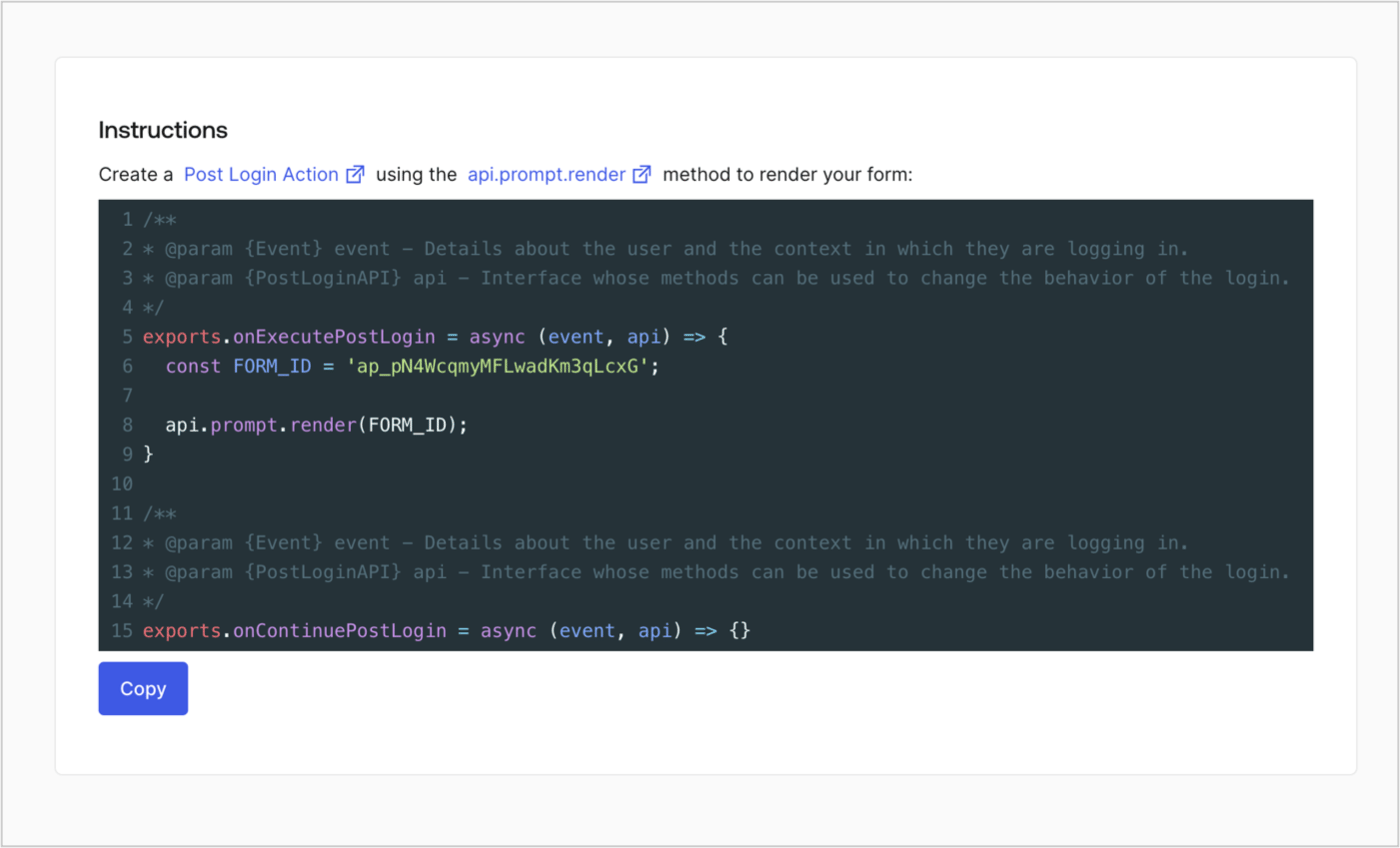
フォームのレンダーコードを取得して、カスタムのログイン後アクションでフォームを視覚的にレンダリングするには、以下の手順に従います。

* フォームエディターから **［Render（レンダー）］** を選択します。
* **［Copy（コピー）］** を選択します。

<Frame>
  <img src="https://mintcdn.com/docs-staging-feat-member-mgmt-docs/8HlkVvCS6gbO8efn/docs/images/ja-jp/cdy7uua7fh8z/2EIUzc539sq9lwoTKbjoJv/496a864c0fc44a782c9cadca119dbfb0/embed.png?fit=max&auto=format&n=8HlkVvCS6gbO8efn&q=85&s=62a7bee839c45dc7108e860557b08c8c" alt="Dashboard > Actions > Forms > Form > Embed" data-og-width="1400" width="1400" data-og-height="848" height="848" data-path="docs/images/ja-jp/cdy7uua7fh8z/2EIUzc539sq9lwoTKbjoJv/496a864c0fc44a782c9cadca119dbfb0/embed.png" data-optimize="true" data-opv="3" srcset="https://mintcdn.com/docs-staging-feat-member-mgmt-docs/8HlkVvCS6gbO8efn/docs/images/ja-jp/cdy7uua7fh8z/2EIUzc539sq9lwoTKbjoJv/496a864c0fc44a782c9cadca119dbfb0/embed.png?w=280&fit=max&auto=format&n=8HlkVvCS6gbO8efn&q=85&s=3f71f5b2f2a6de502b15b714a5bac0b4 280w, https://mintcdn.com/docs-staging-feat-member-mgmt-docs/8HlkVvCS6gbO8efn/docs/images/ja-jp/cdy7uua7fh8z/2EIUzc539sq9lwoTKbjoJv/496a864c0fc44a782c9cadca119dbfb0/embed.png?w=560&fit=max&auto=format&n=8HlkVvCS6gbO8efn&q=85&s=cb2e632372d4c36482bd034046799fe4 560w, https://mintcdn.com/docs-staging-feat-member-mgmt-docs/8HlkVvCS6gbO8efn/docs/images/ja-jp/cdy7uua7fh8z/2EIUzc539sq9lwoTKbjoJv/496a864c0fc44a782c9cadca119dbfb0/embed.png?w=840&fit=max&auto=format&n=8HlkVvCS6gbO8efn&q=85&s=4be2cb7a5f7a4724c28bfc65179f5f83 840w, https://mintcdn.com/docs-staging-feat-member-mgmt-docs/8HlkVvCS6gbO8efn/docs/images/ja-jp/cdy7uua7fh8z/2EIUzc539sq9lwoTKbjoJv/496a864c0fc44a782c9cadca119dbfb0/embed.png?w=1100&fit=max&auto=format&n=8HlkVvCS6gbO8efn&q=85&s=5dbd31dba2f0c4ec91e4245fb4bcfd6f 1100w, https://mintcdn.com/docs-staging-feat-member-mgmt-docs/8HlkVvCS6gbO8efn/docs/images/ja-jp/cdy7uua7fh8z/2EIUzc539sq9lwoTKbjoJv/496a864c0fc44a782c9cadca119dbfb0/embed.png?w=1650&fit=max&auto=format&n=8HlkVvCS6gbO8efn&q=85&s=f6b34f2bde2c5e8a529bbf1460c8835c 1650w, https://mintcdn.com/docs-staging-feat-member-mgmt-docs/8HlkVvCS6gbO8efn/docs/images/ja-jp/cdy7uua7fh8z/2EIUzc539sq9lwoTKbjoJv/496a864c0fc44a782c9cadca119dbfb0/embed.png?w=2500&fit=max&auto=format&n=8HlkVvCS6gbO8efn&q=85&s=f1aab929f5d031d7c098783641af2756 2500w" />
</Frame>

## ログイン後のアクションを作成する

ログイン後のアクションを作成してフォームをレンダリングするには、次の手順に従います。

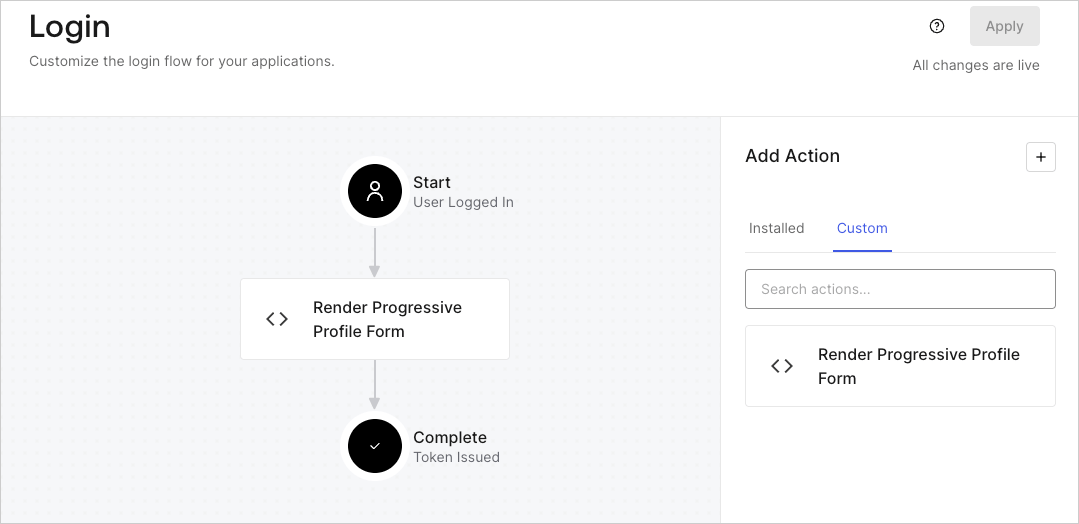
1. **［Auth0 Dashboard（Auth0ダッシュボード）］>［Actions（アクション）］>［Flows（フロー）］>［Login（ログイン）］** に移動します。
2. **［+］** アイコンを選択し、 **［Build from scratch（初めから構築する）］** を選択します。

   * **Name（名前）** ：`Render Progressive Profile Form`（プログレッシブプロファイルフォームのレンダリング）と入力します。
   * **Trigger（トリガー）** ：［`Login / Post Login`（ログイン/ログイン後）］を選択します。
   * **Runtime（ランタイム）** ：推奨バージョンを選択します。
3. **［Create（作成）］** を選択します。

ログイン後のアクションを構成するには、以下を行います。

1. 既存のコードをコードエディターから削除します。

2. フォームの埋め込みコードをコードエディターに貼り付けます。

3. コードを編集して、フォームをレンダリングする条件ロジックを定義します。

   ```javascript lines theme={null}
   /**
   * @param {Event} event - Details about the user and the context in which they are logging in.
   * @param {PostLoginAPI} api - Interface whose methods can be used to change the behavior of the login.
   */
   exports.onExecutePostLogin = async (event, api) => {
     const FORM_ID = 'REPLACE_WITH_YOUR_FORM_ID';

     if (
       event.stats.logins_count > 2 &&
       !event.user.user_metadata.company_name &&
       !event.user.user_metadata.job_title
     ) {
       api.prompt.render(FORM_ID);
     }
   }

   exports.onContinuePostLogin = async (event, api) => { }
   ```

   <Callout icon="file-lines" color="#0EA5E9" iconType="regular">
     上の例にあるコードでは、ユーザーのログイン回数が3以上で、ユーザーのメタデータにcompany\_nameプロパティとjob\_titleプロパティがない場合にフォームが表示されます。
   </Callout>

4. **［Deploy（デプロイ）］** を選択します。

5. **Render Progressive Profile Form（プログレッシブプロファイルフォームのレンダリング）** アクションを **Login（ログイン）** フローにドラッグ＆ドロップします。

   <Frame>
     <img src="https://mintcdn.com/docs-staging-feat-member-mgmt-docs/iAo2DlpR4okUqz3O/docs/images/ja-jp/cdy7uua7fh8z/1QjjZdpTqTxx012UDN4xk9/99fba5ef4068a5688f1762eea7f42976/renderprogessiveprofile.png?fit=max&auto=format&n=iAo2DlpR4okUqz3O&q=85&s=6aea63e8b330339cdb527c9decf7e160" alt="Dashboard > Forms > Use Cases Progressive Profile Login Action" data-og-width="1079" width="1079" data-og-height="524" height="524" data-path="docs/images/ja-jp/cdy7uua7fh8z/1QjjZdpTqTxx012UDN4xk9/99fba5ef4068a5688f1762eea7f42976/renderprogessiveprofile.png" data-optimize="true" data-opv="3" srcset="https://mintcdn.com/docs-staging-feat-member-mgmt-docs/iAo2DlpR4okUqz3O/docs/images/ja-jp/cdy7uua7fh8z/1QjjZdpTqTxx012UDN4xk9/99fba5ef4068a5688f1762eea7f42976/renderprogessiveprofile.png?w=280&fit=max&auto=format&n=iAo2DlpR4okUqz3O&q=85&s=53176a57e19b9bbe7f694c10d715c9d4 280w, https://mintcdn.com/docs-staging-feat-member-mgmt-docs/iAo2DlpR4okUqz3O/docs/images/ja-jp/cdy7uua7fh8z/1QjjZdpTqTxx012UDN4xk9/99fba5ef4068a5688f1762eea7f42976/renderprogessiveprofile.png?w=560&fit=max&auto=format&n=iAo2DlpR4okUqz3O&q=85&s=224c21de3a6736edb748b4966c11d503 560w, https://mintcdn.com/docs-staging-feat-member-mgmt-docs/iAo2DlpR4okUqz3O/docs/images/ja-jp/cdy7uua7fh8z/1QjjZdpTqTxx012UDN4xk9/99fba5ef4068a5688f1762eea7f42976/renderprogessiveprofile.png?w=840&fit=max&auto=format&n=iAo2DlpR4okUqz3O&q=85&s=a230b18799497ad78deef3227984c18f 840w, https://mintcdn.com/docs-staging-feat-member-mgmt-docs/iAo2DlpR4okUqz3O/docs/images/ja-jp/cdy7uua7fh8z/1QjjZdpTqTxx012UDN4xk9/99fba5ef4068a5688f1762eea7f42976/renderprogessiveprofile.png?w=1100&fit=max&auto=format&n=iAo2DlpR4okUqz3O&q=85&s=6108943df9101c468d2886019688c56a 1100w, https://mintcdn.com/docs-staging-feat-member-mgmt-docs/iAo2DlpR4okUqz3O/docs/images/ja-jp/cdy7uua7fh8z/1QjjZdpTqTxx012UDN4xk9/99fba5ef4068a5688f1762eea7f42976/renderprogessiveprofile.png?w=1650&fit=max&auto=format&n=iAo2DlpR4okUqz3O&q=85&s=1e8fcc8d93a517abe2241a0b32ad384c 1650w, https://mintcdn.com/docs-staging-feat-member-mgmt-docs/iAo2DlpR4okUqz3O/docs/images/ja-jp/cdy7uua7fh8z/1QjjZdpTqTxx012UDN4xk9/99fba5ef4068a5688f1762eea7f42976/renderprogessiveprofile.png?w=2500&fit=max&auto=format&n=iAo2DlpR4okUqz3O&q=85&s=d4d5e122804482199ea7628b0e35a95c 2500w" />
   </Frame>

6. **［Apply（適用）］** を選択します。

### 実装をテストする

次の手順に従って実装をテストします。

1. ログインを3回以上実行済みで、`user_metadata`属性の`company_name`と`job_title`に値がない既存のユーザーでログインします。
2. ログインフローのログイン後アクションがフォームをレンダリングして、情報の入力を求めます。
3. **［Auth0 Dashboard］>［User Management（ユーザー管理）］>［Users（ユーザー）］** に移動し、ユーザーを見つけて、`user_metadata`属性の`company_name`と`job_title`に情報が含まれていることを確認します。